1. Start here
For the data flow, sync logic, match-day storage and benefits, read How Squad Manager Works.
Sign in
- Go to squadmanager.co.uk.
- Enter your email and password.
- Accept the terms and sign in.
A Head Coach or Platform administrator can invite you. Use the invite email to set your password. If you forget it, use the reset link on the sign-in page.
Choose the right age group
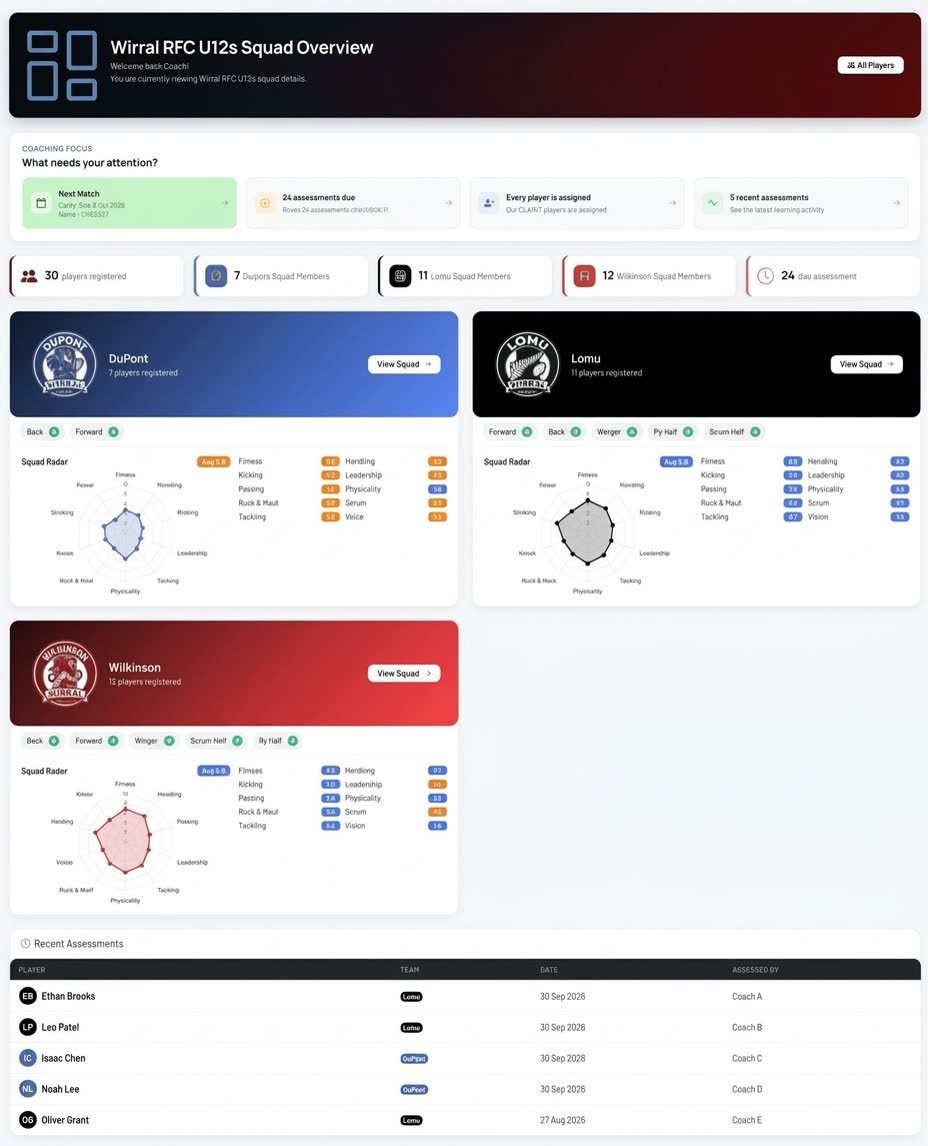
Your current age group appears at the top of each page. Check it before you view players, save an assessment or open a Team Sheet. Use the age-group picker to change it.
2. Spond and the sync
For a Spond-connected age group, Spond is where player and fixture details begin. Squad Manager uses a PHP client, with Olen/Spond as an API reference, and a scheduled cron job to bring that information into the app.
What the sync does
The hourly sync creates and updates players, fixtures, event responses and coach responses. It refreshes player names and sets imported players to active. A missing player is not disabled by the sync. For fixtures, it refreshes the date, time, title, place and venue details.
What you need to do
Do not add a player or fixture by hand for a Spond-connected age group. Add or correct it in Spond. It will appear in Squad Manager after the next sync. Open Spond availability when you need to check the imported replies for an event.
If something seems missing, first check the right age group and filters. Then ask the Head Coach to check Spond and the latest sync.
3. Players
Find a player
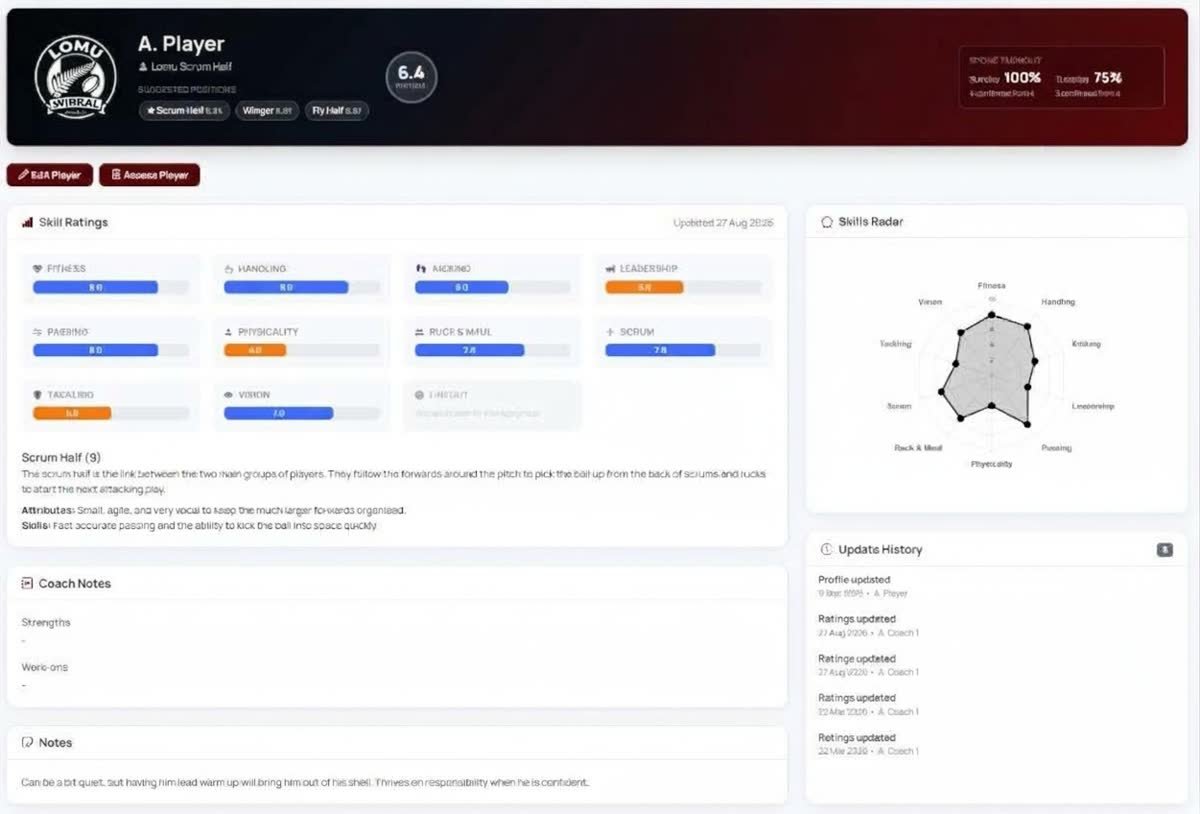
Open All Players. Search by name. You can also filter by team, position, assessment state or player state. Select Apply to use a filter. Select Reset to clear it.
Details you can change
You can edit a player's normal team, normal position and coaching notes. You can also add assessments. The Spond sync does not replace these coaching details.
Details managed by Spond
For a Spond-managed player, their name and active status are shown as managed. Change those details in Spond, not in Squad Manager. If a player has left, ask the Head Coach to check their Spond membership. Do not disable or delete the player in Squad Manager.
4. Schedule
Open Schedule to see upcoming fixtures, training and other sessions. For a Spond-connected age group, fixtures come from Spond. The scheduled sync keeps their key details up to date.
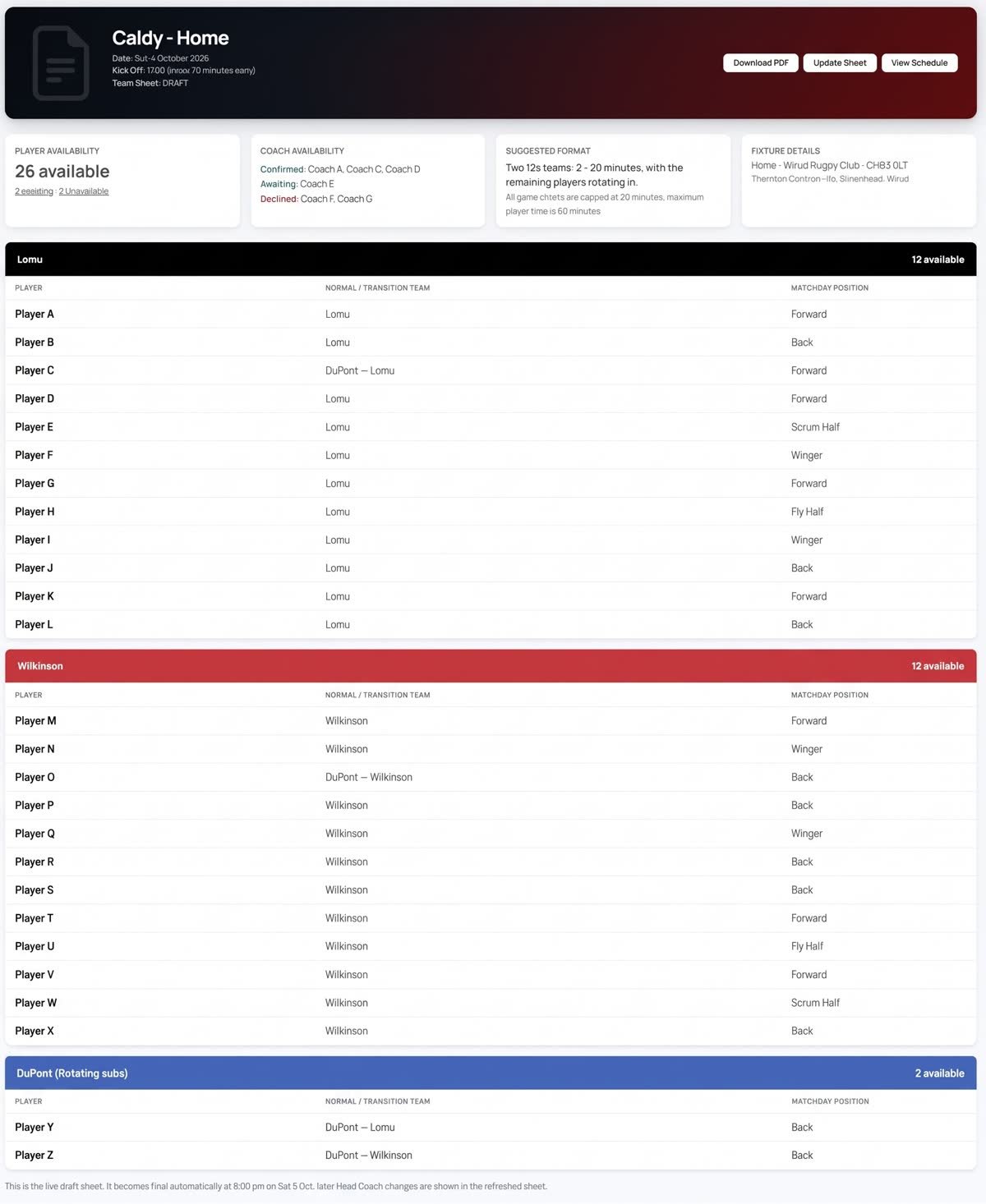
Select Team Sheet beside a fixture or session to see its player availability, coach availability, suggested format and match-day teams.
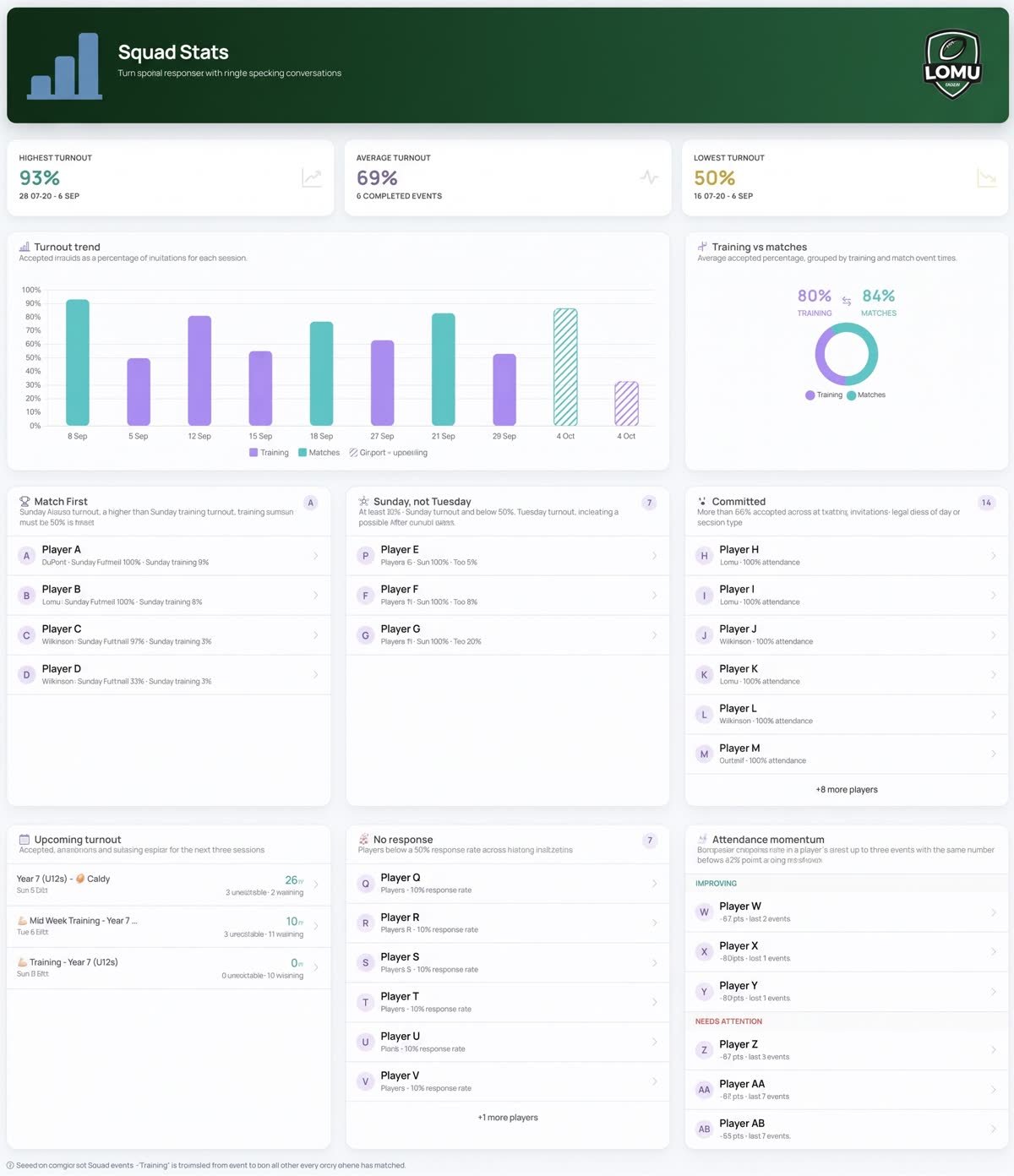
Spond-managed fixture details are read-only. Head Coaches can still set the session type, add coaching notes, record an outcome and plan match day.
5. Match day
Plan the squad
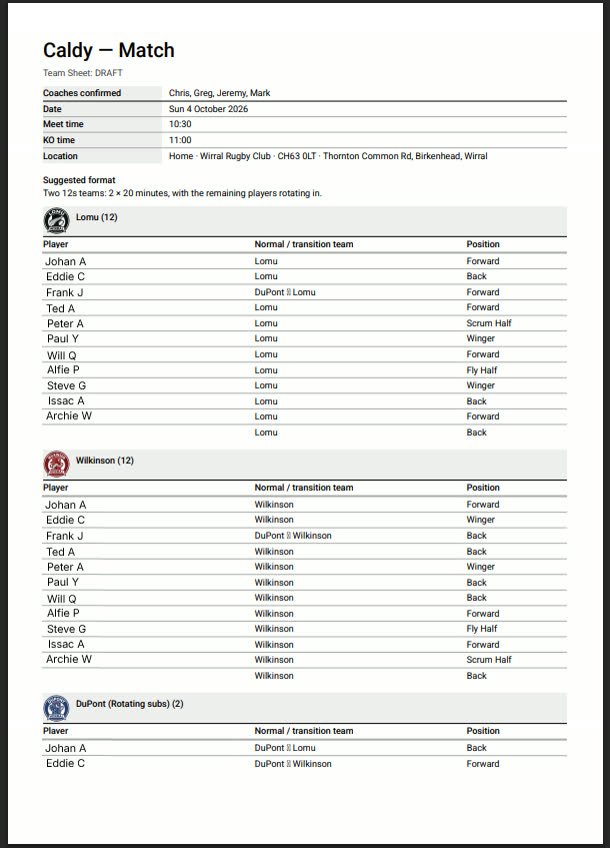
Head Coaches select Update Sheet from the Team Sheet. Check each player's Spond availability first. You can change it here, but the next sync can replace that change. Then choose their Matchday team and Matchday position.
- Players start with their normal team and usual position.
- Move a player to another squad for this match only.
- Give a player a different position for this match only.
- Use the match-day balance indicator to compare the available-player totals.
- Unavailable players do not have a match-day team or position.
Print the squad
Select Download PDF on the Team Sheet. Open the PDF, then print it if you need a paper copy. The PDF lists the fixture details, confirmed coaches, available players, match-day teams and match-day positions.
The PDF has player data. Use approved club channels when sharing it. Do not leave printed copies unattended.
6. Assessments
Record an assessment
- Open the player page.
- Select New Assessment.
- Give each skill a score from 1 to 10.
- Write what went well and what to work on.
- Select Save Assessment.
Each save makes a new dated record. It does not replace an old one. You can start with the last scores, but check each score first.
Write useful notes
Say what you saw. Then say what to try next. For example: “Fast pass from the ruck. Work on a pass to the left under pressure.” Agree a shared score guide with your coaching team.
Players due for review
A player is due if they have no assessment in 13 weeks. Open Due Assessment. Pick a player and save a new assessment. Opening a player page does not reset the due date.
7. Coaching tools
Squad Heatmap
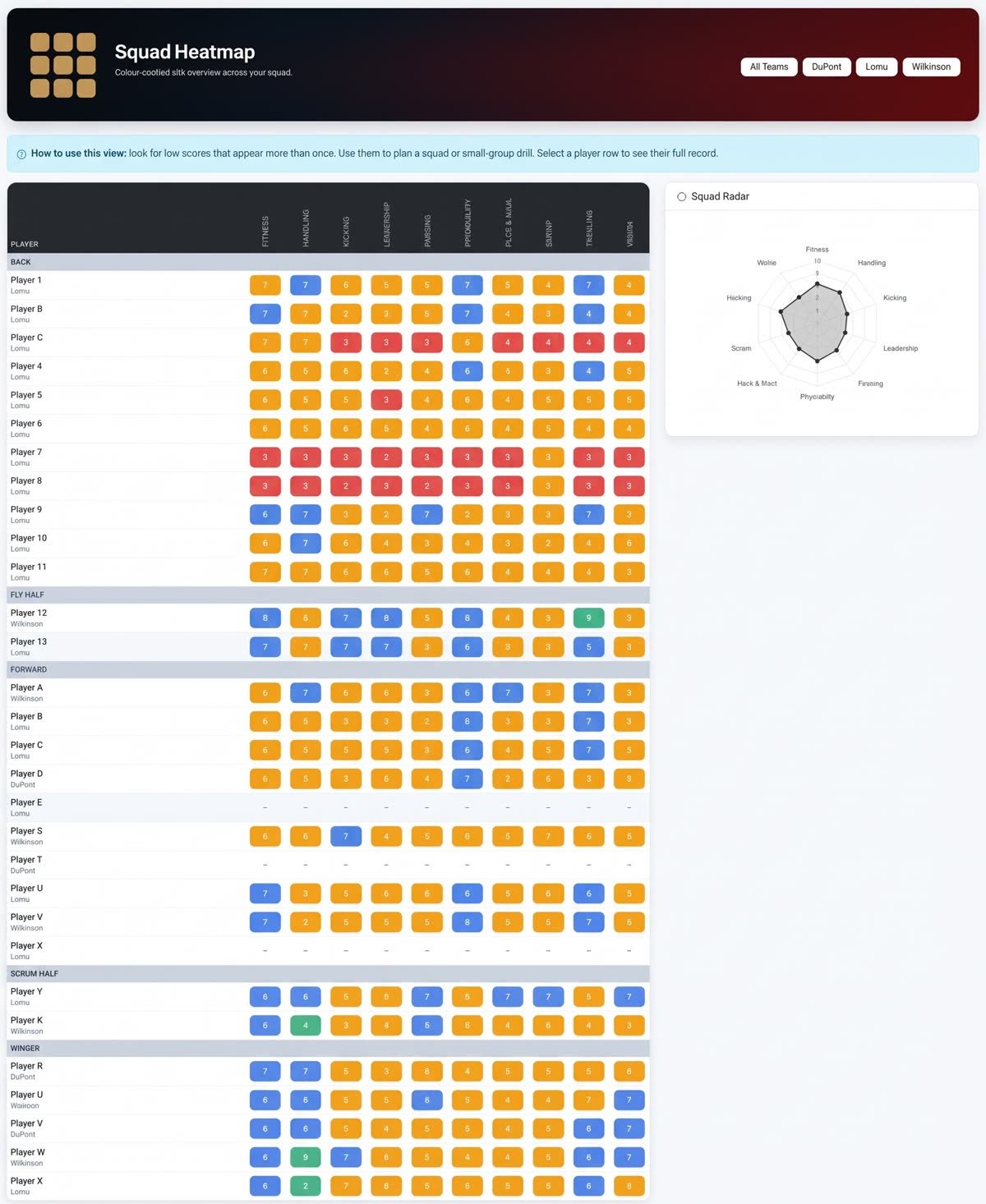
The Heatmap shows scores for the whole squad. Each colour shows a score level. Use it to spot a shared need. Then open a player page for the full story.
Splinter Groups
Use Splinter Groups to find players who need work on the same skill. Pick a skill, a score limit and a team. The list shows players at or below that score. Use it to plan a small group drill.
Knowledge quiz
For U11, a player page can link to a quiz. The quiz opens in a new tab. It saves answers on the player record. Quiz Admin lets approved users edit questions.
Teams and reports
Open Teams to add or edit a team. To change a player's normal team, edit the player. To print the full squad, open All Players and select Print Complete Squad. Keep the report safe. It has player data.
8. A simple routine
Before training
Check your age group. Look at due assessments. Read recent notes. Pick one or two coaching aims.
Before a match
Check the Spond replies. Open the Team Sheet. Review availability and set match-day teams and positions. Download and print the PDF if needed.
After training or a match
Write short notes while you can still recall what you saw. Save planned assessments. Change a normal team or position only when the change is not just for one match.
At season end
Finish reviews. Check player and coach links. Tell the Platform administrator when your group is ready to move on.
9. Roles
| Task | Platform administrator | Head Coach | Coach |
|---|---|---|---|
| View players, teams and assessments in an allowed age group | Yes | Yes | Yes |
| Edit normal player coaching details | Yes | Yes | Yes |
| Plan availability and match-day teams or positions | No | Yes | No |
| Invite coaches and set their age groups | Yes | Yes | No |
| Set up clubs, skills, roles and seasons | Yes | No | No |
Ask a Head Coach if you need access to another age group.
10. Get help
For help with access, players or normal use, contact your club's Head Coach. For a platform issue, contact your Platform administrator.
Send the page address, the time and a short note on what went wrong. Do not send children's details in an unsafe message.
Quick checks
- Cannot sign in? Check your email, password and account state.
- Cannot find a player? Check the age group and filters, then check Spond with the Head Coach.
- Fixture details look wrong? Check the event in Spond and wait for the next sync.
- Player still due? Save a new assessment.
- Chart or report will not load? Turn on JavaScript, then try again.
11. Key words
Assessment: a dated set of scores and notes. Heatmap: a squad score view. Matchday team/position: a one-match choice that does not replace the normal team or position. Splinter Group: players with the same need. Work-on: a skill to practise. Unassigned: a player with no team. Archived: old data that you can view but not change.